

Do you ever open your Gmail and feel like you’ve stepped into a digital whirlwind? A tidal wave of emails crashes over you, important messages get lost in the noise, and the thought of reaching “inbox zero” seems like a distant dream. You’re not alone. Many entrepreneurs and solopreneurs, even those with the best intentions, are drowning in unread emails. Some clients have even confessed to having over twenty thousand unread messages! It’s a common problem, leaving you with that nagging feeling that something critical is there.
This overwhelming email experience isn’t just annoying; it impacts your productivity and effectiveness. It steals precious time you could spend on high-value projects, saps your energy, and constantly interrupts your focus. Every minute you spend sifting through clutter is a minute you’re not spending on growing your business or serving your clients.
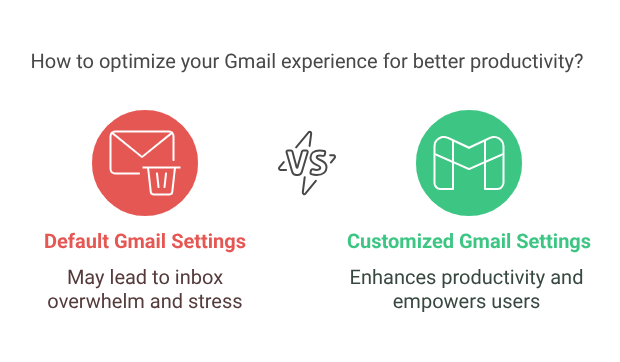
But here’s the good news: Gmail isn’t just a static, unchangeable tool. It’s actually a customizable platform with hidden features designed to help you regain control of your inbox and reclaim your time. By making a few key adjustments to your Gmail settings, you can transform your email experience from a source of stress to a powerful productivity tool, giving you a sense of empowerment and relief.
Let’s dive into four settings that can make a significant difference, but first, it’s essential to understand Gmail basics:
- All Mail: This is the master record of every email conversation in your account. It’s the total of all your emails.
- Inbox: This is a subset of “All Mail.” It’s where your unread emails typically land.
- Archiving: This removes an email from your inbox but keeps it in “All Mail.” If you’ve never used the archive feature, the number of emails in your inbox might be the same as in “All Mail.”
Now, let’s explore those transformative settings:
1. Choose a New Inbox Layout:
Gmail’s default layout isn’t the only option. You can tailor your inbox to match your workflow, saving you valuable time and making you feel more efficient.
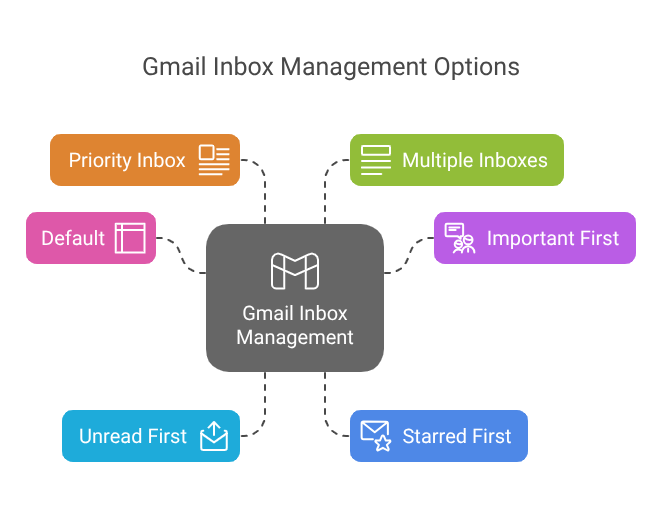
- To find these options, click the Settings gear icon and scroll down to “Inbox Type.”
- Default: This is the standard layout with category tabs (Primary, Promotions, Social, Updates, and Forums) across the top. You can choose to show or hide these tabs.
- Important First: This prioritizes conversations you’ve marked as critical, placing them at the top. You can adjust how Gmail determines importance by turning on “Importance Markers” in “Settings,” then “See All Settings,” and then the “Inbox” tab.
- Unread First: This displays unread emails at the top, followed by everything else.
- Starred First: If you use the star feature to mark essential emails, this layout puts those at the top.
- Priority Inbox: This allows you to create and organize predefined sections to display.
- Multiple Inboxes: This offers the most customization, allowing you to create sections based on your labels. It’s beneficial for highlighting critical emails.
You can also choose whether or not to show a reading pane, saving you time opening and closing emails and giving you more control over your time.
2. Customize System Labels:
Gmail has default “System Labels” like “Sent,” “Drafts,” and “Scheduled.” You don’t have to see all of them. Go to “Settings,” then “System Settings,” and then “Labels” to choose which “System Labels” to display. Decluttering this list can simplify your sidebar.
3. Templates:
If you frequently send similar emails, templates are a game-changer.
- To enable them, go to “Settings,” then “See All Settings,” then “Advanced,” and then “Enable” templates.
- To create a template, compose an email. Once it’s ready, click the “ellipsis menu” (three dots) at the bottom of the window, select “Templates,” and then “Save draft as template.”
- When you compose a new email from the compose window, choose the “ellipsis menu,” “Templates,” and then “Insert Template.”
- Pro tip: Remove your email signature from the template to avoid duplication.
4. Labels & Filters:
Remember, Gmail labels aren’t the same as folders. A Gmail conversation can have multiple labels, making organizing conversations that fall into different categories easier.
It’s helpful to start with 7 to 10 ‘Big Bucket’ labels (e.g., ‘Clients,’ ‘Projects,’ ‘Admin’) and then nest more specific labels under them.
Filters automate email processing. They can automatically apply a label to matching conversations or skip the inbox, among many other options.
‘Skip the inbox’ is helpful for content you want to accumulate for later reading, but avoid using it for essential conversations that require immediate attention. Using filters in this way might lead to missing important emails, so use it judiciously.
The form you have selected does not exist.
Final Thoughts:
Customizing Gmail is a Great Way to Enhance Your Workflow. It offers a wealth of customization options. Don’t be afraid to explore these settings and others to create a personalized approach that works for you. Lean into the power of labels and filters to automate your inbox management. By establishing a disciplined email process, you can transform Gmail from a source of stress into a powerful tool that helps you achieve your goals.